‘Rival Stars Horse Racing’ is out now for the Nintendo Switch
Press release:
Wellington, New Zealand - June 4, 2026 - After successfully launching on PlayStation [...]





As soon as your MacBook starts to display technical or performance issues, you begin searching for all possible solutions. Sometimes, the problem is graphics-centric, and you don’t feel like fixing it by yourself, as you may end up with more severe issues.
If your MacBook is new, you can take it to the Apple Store, as your AppleCare Plus subscription will cover any repair and replacement costs. However, if you have an old MacBook, you might be thinking of DIY MacBook Pro graphics card replacement tips.
Let’s make things easier for you in this article.
Basics to Graphics Card Replacement
The CPU in your computer works in conjunction with the software program for sending information about a specific image to the graphics card. On receiving the image information, the graphic card decides how to process the image.
The graphics card then works on the process of using the pixels to fit the display for creating images. If the graphics card has to render a 3D image, first, it transforms the straight lines into a wireframe. This information is then transmitted to the monitor via a cable.
When the graphics card stops working, you will find difficulty working on the MacBook, particularly if you are a graphics designer or an avid gamer. Sometimes, you won’t be able to do simple emailing tasks to your colleagues as the image is not displaying appropriately.
In that case, users initially wonder if there is something wrong with the graphics app or the Apple Mail not working properly. But, it’s your graphics card that is at fault and stopping you from doing regular computing work.
If you depend on your MacBook for watching videos and playing games, replace it as soon as you notice any kind of discrepancies in image quality. Replacing the graphics card alone will not give you the performance you need from your MacBook.
Replacing Your Graphics Card By Yourself
This can be quite tricky, but if you are comfortable with digital and electronic devices, a home replacement method may fit you. If you still have a valid warranty on your MacBook, rooting around the interior can result in voiding the warranty.
Another thing you may find challenging while trying to replace the graphics card in your MackBook is the availability concerns. Depending on your MacBook model, the chances are that the graphics card compatible with the older generation Macs might not be available.
Check online, as you may get more options without the hassle of moving from one physical store to another. Many online stores have a flexible return policy in case the item you receive doesn’t match your expectations. Make sure to check that before making a purchase.
Replacing Your Graphics Card Professionally
MacBook replacement is the best solution if your device is new or like-new. If you get your MacBook replaced or at least the graphics card replacement from the manufacturer, you won’t have to deal with the hassle of an after-market search to pick the right card.
Plus, you don’t have to live without your MacBook during the time it gets fixed. There are many other benefits that come complimentary if you opt for professional services. You get original products and expert assistance from certified Apple technicians.
If anything happens after MacBook Pro graphics card replacement services, you can move straight to the store and ask for the best resolution. No warranty voids, no technical workarounds, and no technology failures, all you get is satisfactory services.
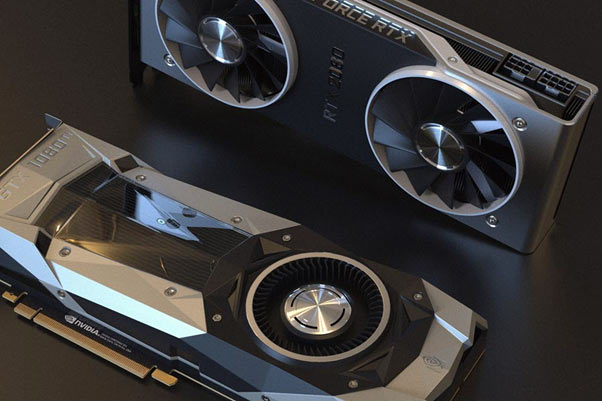
A good and well-oiled graphics card is an absolute must if you want to experience a smooth, lag-free, and fast experience on your Macbook Pro (or any other computer, smartphone, or tablet for that matter).
More often, you will not find any problem with the image or video quality even after using your computer for years. Sometimes, the graphics on your computer appear blurred as soon as you start using the device for playing a game or watching a movie.
So, there’s no specific time range when you need to replace the graphics card on your computer. Mostly, the graphics card works smoothly for as long as you use your laptop without displaying any technical issues at all.
If you start seeing horizontal or vertical lines on your computer screen, it’s time to replace the graphics card. In addition, when your screen starts to blur after you use your computer for a couple of hours, it might be the indication for graphics card replacement.
When the graphics card is faulty or outdated, your MacBook keeps shutting down repeatedly. In addition, you May see a pixelated image, double images, blank screen, color variations, and similar symptoms that clearly indicate issues with the graphics card.
The Conclusion
The graphics cards on your MacBook hardly display an error. But when it does, it’s difficult to use the device, even for sending emails or typing a document. If the problem is severe and you need graphics card replacement, we recommend you get it replaced professionally.
More by Guest Author:
Tags: Apple, Computers, Graphics card, Hardware, Laptops, MacBook Pro, Tech