The retro-style narrative indie game, ‘MyDear.Exe’, is out now for PC
Press release:
FRANCE - Falling Leaves Studio, a young French indie developer based in Bordeaux, is [...]




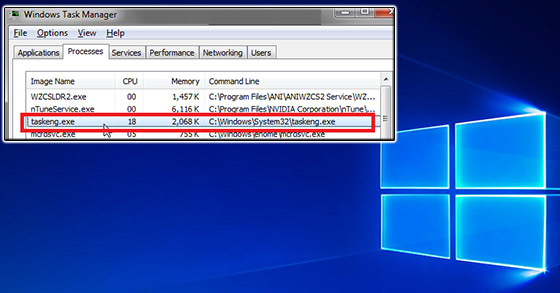
Taskeng.exe (Task Scheduler Engine) is a system file for Windows 10/8/7 operating systems. The given file ensures the proper operation of the Task Scheduler Service, whose main function lies in keeping track of processes prearranged by a user of operating system.
Normally, the task.exe component doesn’t pose any danger to your computer if located in the folder C:\Windows\System32, the place where it belongs.
– You can check the location using Windows Task Manager. To do this, click on a specific process and select the “Open storage location” option.

The good ol’ Windows task manager.
The truth is that some cyber criminals tend to disguise their malware as task.exe. So, if you discover the taskeng.exe file in any other folder, it’s very likely you’re dealing with potentially harmful software. The first thing you need to do is to scan the dubious file for Trojans, worms, and viruses. Still, if you’re constantly seeing a taskeng.exe window popping up at random, consider trying the methods outlined below.
If you need more information on how to run a scan over the taskeng.exe file, see a detailed guide on RockFiles.
Sometimes the taskeng.exe problem lies not in the process itself, but in the program it aims to launch. That being the case, it’s necessary to deal with the buggy program itself.
As a rule, it is not possible to figure out the causes of the program at the moment when the taskeng.exe window pops up, since it tends to disappears within a second. So, it’s necessary to take a look at login handlers.
You can use a simple way to get a report file, which requires administrative rights. To do it:
Click Win + R.
Type cmd and press enter.
Use the schtasks >>% userprofile% desktoptasks.txt command.
Then, from the desktop, launch a new task.txt file, which will display the progress of scheduled tasks and their result. To determine the location of the program generating a taskeng.exe pop-up window, you’ll need to remember the exact time at which the taskeng.exe window pops up. Chances are you’ll see the necessary information about the error in procedures in your file.
Once you detect the problematic program, you may want to delete it from your computer and reinstall its healthy version, if necessary.
– There is also a possibility you won’t need to delete the entire program, but only a file responsible for its updating. It can be located either in the folder with the program itself, or the folder containing user data relating to the operation of the application.
If the latter is the case, you’ll be able to find it in C: Users% Username% AppData Local. Since the AppData folder is hidden, you’ll need to enable its display. After that, head to the program folder of the same name and delete the file responsible for updating the program. Its name should look somewhat like: “Program name + update.exe.”
– You should also consider a situation where the taskeng.exe is caused not by a program, but the Windows Update service. Should this be the case, just disable it, and the problem will be fixed. To do it:
Click Win + R and type “services.msc.” Hit Enter.
Locate “Windows Update.” Double-click to open it.
Select the “Manual” launch option.
We hope that the methods described above have been helpful and you managed to fix the taskeng.exe error.
Should you have other Windows-related problems, don’t hesitate to visit to RocketFiles, an expert at troubleshooting Windows system errors.
***In cooperation with rocketfiles***
More by Guest Author:
Tags: PC, Taskeng, Windows, Windows 10, Windows 7, Windows 8, Windows task manager